How to type Japanese on Windows
4 min read
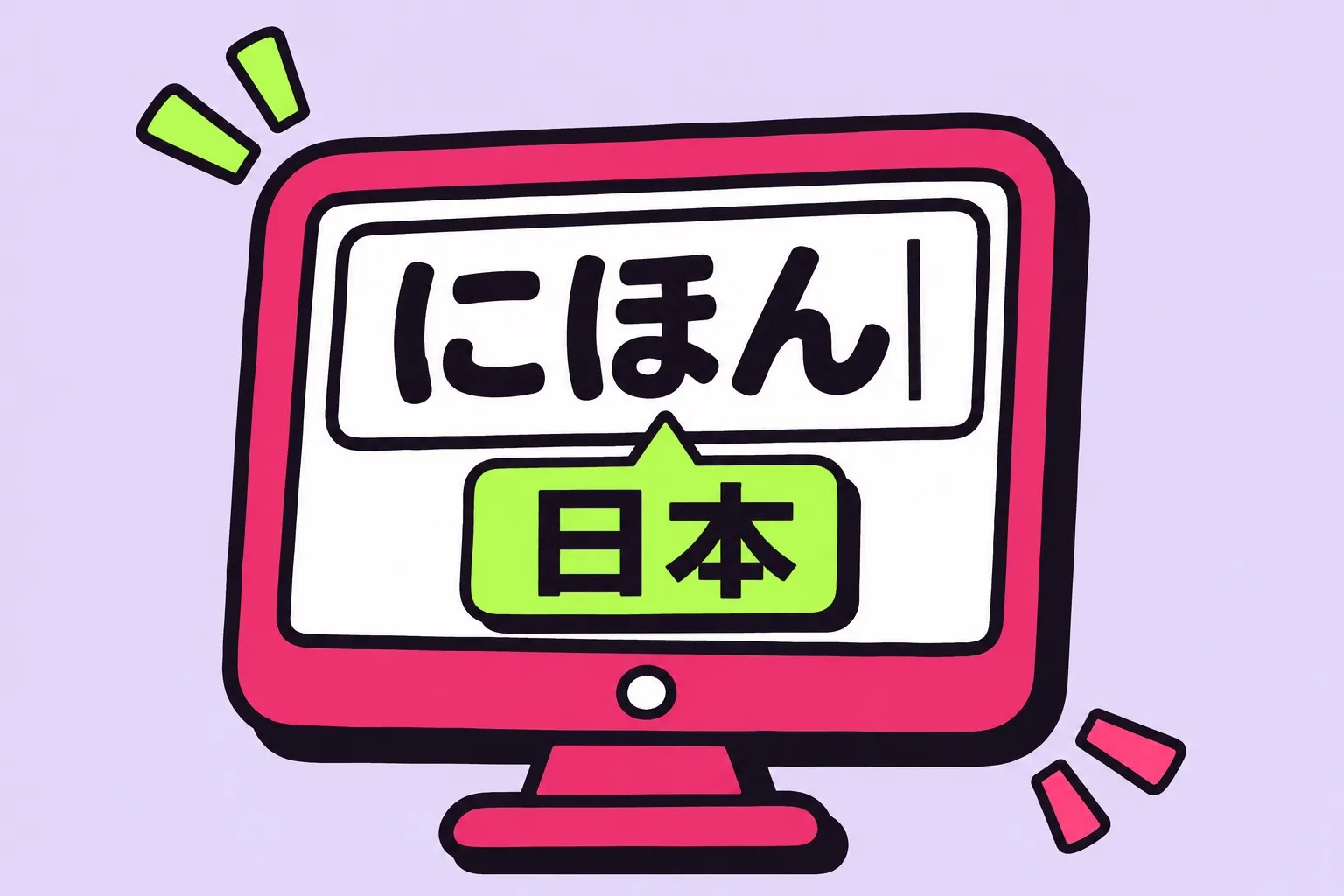
You don't need a Japanese keyboard or a download. Windows includes a Japanese keyboard called the Microsoft IME. Once you turn it on, you type Japanese in romaji on your normal keyboard, and Windows turns it into kana and kanji as you go.
Turn on Japanese in Windows 11
- Open Settings from the Start menu.
- Go to Time & language, then Language & region.
- Under Preferred languages, choose Add a language.
- Search for Japanese, select it and choose Next.
- If you want to keep Windows in English, untick Set as my Windows display language.
- Choose Install.
Turn on Japanese in Windows 10
You need administrator rights on the PC.
- Open Settings from the Start menu.
- Go to Time & Language, then Language.
- Under Preferred languages, choose Add a language.
- Search for Japanese, select it and choose Next.
- If you want to keep Windows in English, untick the option that makes Japanese your display language.
- Choose Install.
Switch to Japanese
Press Win + Space to move between your keyboards until Japanese is selected. You'll see a language indicator at the right of the taskbar.
Next to it is a small A or あ. A types Latin letters and あ types Japanese, so if you've switched to Japanese and still get English letters, this is why. Press Alt + ` to flip between the two, or click the letter.
Type your first word
- Type
nihongo. You'll see にほんご appear, underlined. - Press Space to convert it. It becomes 日本語. Press Space again to see other options if the first one is wrong.
- Press Enter to confirm.
Press Enter without pressing Space if you want to keep the word in hiragana.
Convert to katakana and more
Before you press Enter, these keys change what you've typed:
| Key | Converts to | Example |
|---|---|---|
| F6 | Hiragana | こーひー |
| F7 | Full-width katakana | コーヒー |
| F8 | Half-width katakana | コーヒー |
| F9 | Full-width letters | ko-hi- |
| F10 | Half-width letters | ko-hi- |
F7 is the one you'll use most. Pressing Space also finds katakana for common loanwords.
How to type the tricky kana
| To get | Type | Example |
|---|---|---|
| ん | nn |
onna gives おんあ, so onnna gives おんな |
| Small っ | Double the next consonant | kitte gives きって |
| ー | - |
ko-hi- gives こーひー |
| を | wo |
wo gives を |
| づ and ぢ | du and di |
tuduku gives つづく |
| The particle は | ha, as it's written |
konnnichiha gives こんにちは |
| Small kana on their own | x first |
xa gives ぁ |
Most mistakes come from ん. If it comes before a vowel or a な-row kana, it needs the full nn. That's why こんにちは takes three n's in a row.
If it doesn't work
- Japanese isn't in the list when you press Win + Space. Wait for the install to finish, then restart the PC. Check that Japanese now appears under Preferred languages.
- You still get English letters. The indicator is showing A. Press Alt + ` until it shows あ.
- Japanese text shows as empty boxes in an old program. Go to Time & language, then Language & region, then Administrative language settings, and change the language for non-Unicode programs to Japanese. This only matters for older software, and it needs a restart.
Now that you can type it
Typing Japanese makes you pick the right spelling of every word, and it goes faster once you can read kana on sight. The hiragana chart and katakana chart have every character, and the hiragana quiz times how fast you read them.
On other computers, see how to type Japanese on Mac or on Ubuntu.